
Our Features
Meetups, RSVPs, waiting lists and community groups, right in Confluence
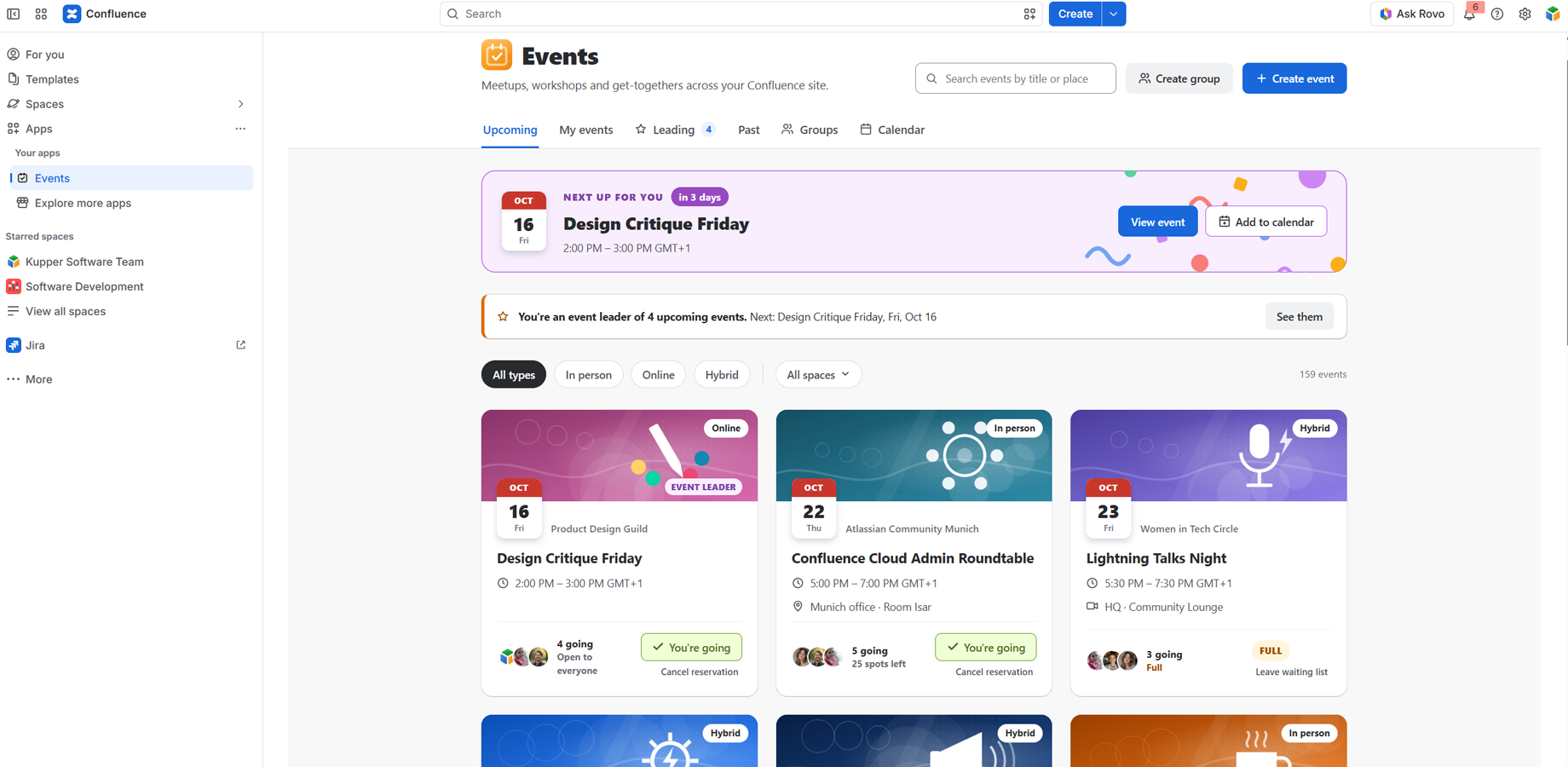
RSVP in one click
People answer in one click and add it to their calendar
Every event in one place
The Events hub shows what’s coming up, the events you’re going to, the ones you lead, past events, groups and a calendar, for the whole site or one space
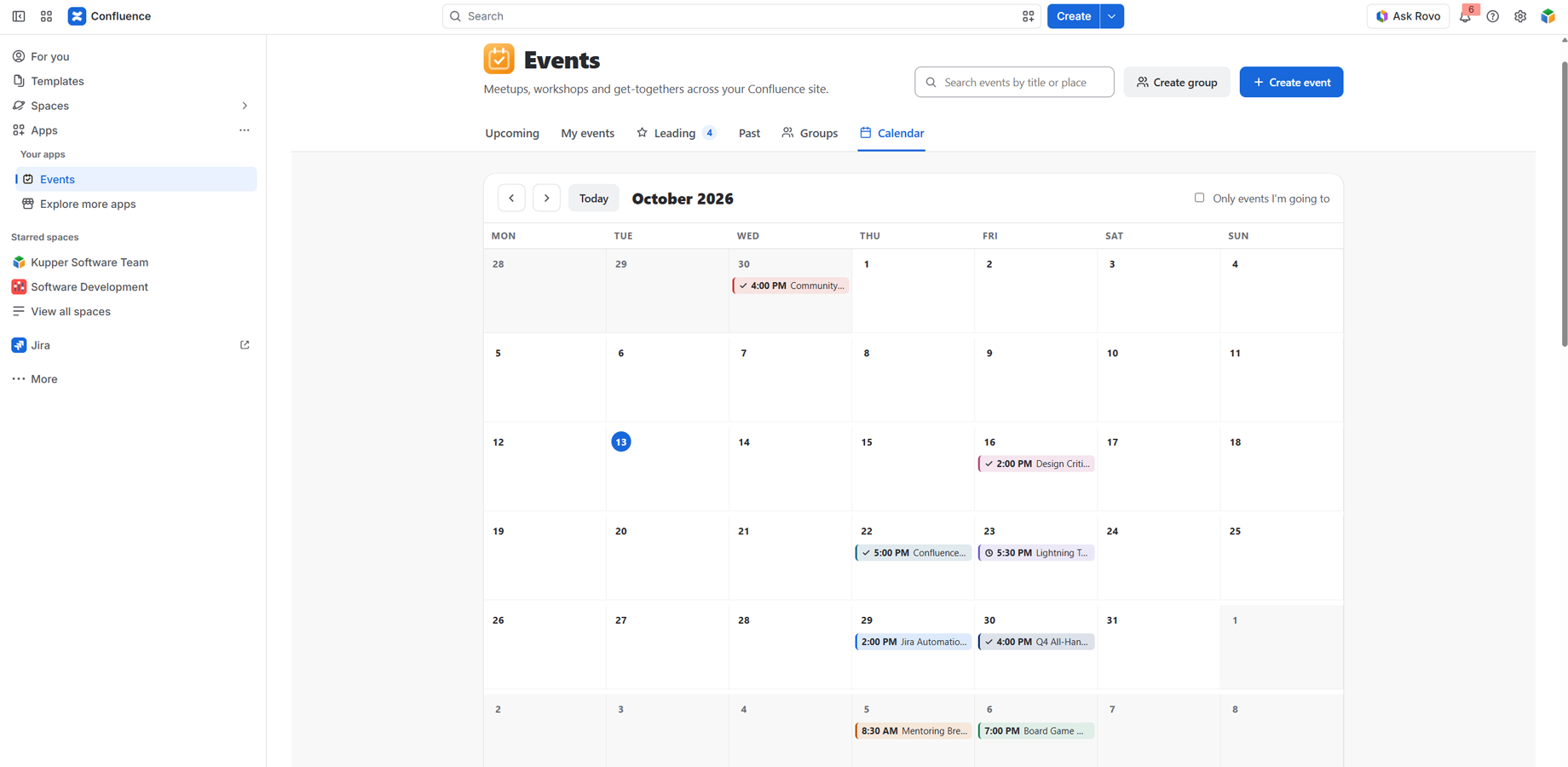
Calendar view
One calendar for every event, multi-day events as bars
Getting Started
Cloud Documentation
Events and Community (RSVP) — User guide
Events and Community brings meetups, workshops and community groups into Confluence. Every event is a Confluence page: people answer on the page, organisers manage it from the page, and everything is listed in one place, the Events hub.
This guide is for everyone who uses events: attendees, organisers (event leaders) and group leaders. Confluence admins, see the admin guide.
- Find events
- Answer an event
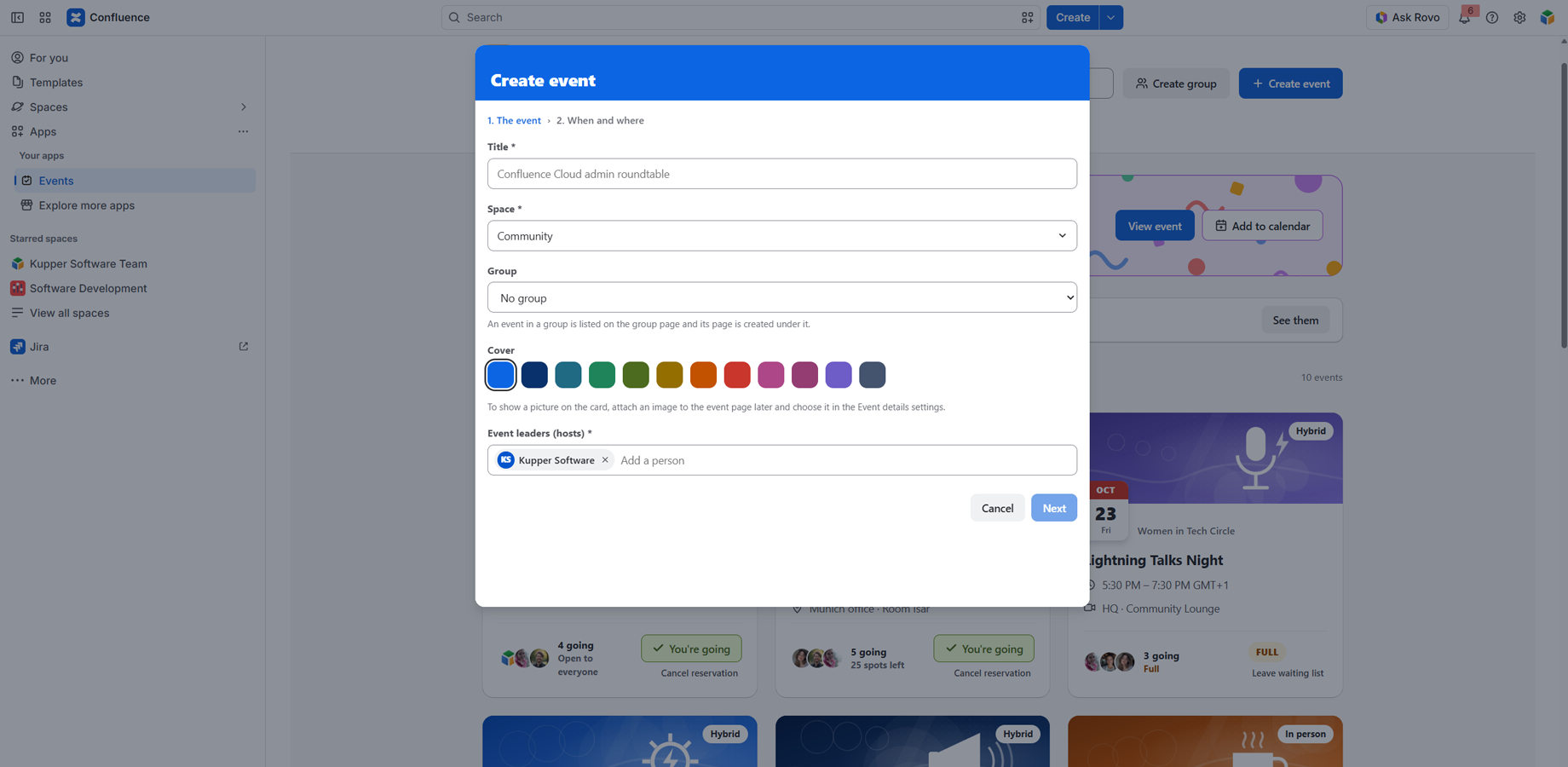
- Create an event
- Lead an event
- Groups
- Event lists and calendars on your pages
- Who sees what
- Questions
Find events
The Events hub
Open Apps › Events in Confluence. The hub shows every event you are allowed to see, across all spaces.
| Tab | What it shows |
|---|---|
| Upcoming | All coming events, soonest first. On top: your next event, your open invitations, and a reminder of the events you lead. |
| My events | The events you are going to, waiting for, or have asked to join. |
| Leading ★ | The coming events you lead, with their number. |
| Past | Events that have ended. |
| Groups | Every community group, with its next event and members. |
| Calendar | A month view. Events over several days are one bar across their days; tick Only events I’m going to to see just yours. |
Use the format chips (In person, Online, Hybrid), the space filter and the search (title or place) to narrow the list.
A space’s events
Each space has its own Events page under Space apps › Events: the same hub, for that space only.
On the event page
Under the page title, RSVP · N going shows the count; click it to answer without scrolling.
Answer an event
| You want to | Do this |
|---|---|
| Go | RSVP to event (or I’m going). Your seat is reserved at once. |
| Not go | Can’t go. You can change your mind later. |
| Cancel | Cancel reservation under “You’re going”. Your seat goes to the next person waiting. |
| Join a full event | Join waiting list. You see your place (#1, #2…) and move up automatically when a seat frees up. |
| Put it in your calendar | Add to calendar downloads a calendar file with a reminder. |
Events with approval. Some event leaders approve each answer. Yours then shows Requested · pending until a leader approves it; you can withdraw it any time.
Invitations. When someone invites you, you get a Confluence notification (a page comment that mentions you) and the event appears under You’re invited on the hub until you answer.
Online events. The meeting link appears on the page for people going, 15 minutes before the start, as a Join meeting button.
When answering is closed. After the RSVP deadline, or if the leaders closed registration, the page says so. A cancelled event says so too; if you were going, your place is kept in case it is restored.
Create an event
- On the Events hub (or a space’s Events page, or a group page), click Create event.
- Step 1 · The event: the title, the space, a group (or “No group”), a cover colour, and the event leaders. You are the first leader; add others if they help organise. Each new leader is told by a page comment that mentions them.
- Step 2 · When and where: format, dates and times, the time zone (search a city or an offset such as “+2”), the place, the meeting link, the capacity, the RSVP deadline, and whether leaders approve each answer.
- Create event page. The app creates the page and opens it.
The page has the classic layout: the RSVP bar and the event details on the left, the event leaders, sponsors and attendees on the right, and an agenda to fill in.
Change the event later
Edit the page and open the Event details macro’s settings (the pencil on the macro). Only the event’s leaders, and the leaders of its group, can change them.
- Capacity: raise it and publish; people waiting move up automatically, in order.
- Banner image: attach an image to the page (drag it in), then pick it under Banner image. It shows on the event’s card and at the top of the details. Best size 1200 × 400 px (3:1), JPG or PNG, under 1 MB.
- Meeting link: must start with
https://. Zoom, Teams, Meet and Webex links are recognised.
To change who leads the event, open the Event leaders macro’s settings. An event needs at least one leader.
The macros of an event page
| Macro | Shows |
|---|---|
| Event subscribe | The RSVP bar (“Want to go?”), with the countdown, the waiting list and your answer |
| Event detail | Date, time, place, deadline, capacity, banner, and your description |
| Event attendees | Who is going (first five), View all, and the waiting list for leaders. Options: show as cards, or the count only |
| Event leaders | The leaders, and Invite people for them |
| Event sponsors | Your text and logos |
Lead an event
Event leaders, and the leaders of the event’s group, manage the event. On the event page, open Manage event (on the RSVP card, in the attendees panel, or in the corner of the pop-up under the title).
| Tab | You can |
|---|---|
| Going | See who comes and when they answered |
| Waiting list | See the queue; Give a seat to someone when a seat is free |
| Requests | Approve or Decline (events with approval) |
| Invited | Withdraw an invitation that has no answer yet |
| Can’t go | See who declined |
Also in Manage event:
- Export: a spreadsheet (CSV) with the event, its group or space, the leaders, and everyone’s answer and time of answer.
- Close registration: nobody new can answer; everyone already in keeps their place. Reopen at any time.
- Cancel event: everyone sees it as cancelled. Tick Tell the people going or waiting to post a page comment that mentions them, with your message. Restore brings it back, and can notify them again. Nobody’s answer is lost.
Invite people. In the Event leaders panel, Invite people: choose up to 300 people and add a message. They are mentioned in one page comment (Confluence notifies them) and see the event under “You’re invited”.
The Leading tab on the hub lists the coming events you lead; a reminder on Upcoming shows the next one.
Groups
A group gathers people around a topic: a user group, a guild, a club. A group page shows a Join button, the group’s leaders, its members, and its events.
- Create a group: Create group on the hub. Choose the space, the leaders, and a short description.
- Join or leave: on the group page.
- Events of a group: Create event in this group on the group page, or pick the group in step 1 of Create event. The event page is created under the group page and is listed there.
- The group’s card on the hub: edit the group page and open the Join macro’s settings (Group card) to choose a cover colour and a banner image attached to the page. The card’s description is the text under Description on the group page.
Group leaders also manage every event of their group.
Event lists and calendars on your pages
Add these macros to any page (type / and the name):
| Macro | Shows |
|---|---|
| Events list index | The space’s events, upcoming and past, with a Create event button. Options: likes and comments counts |
| Upcoming events | The space’s next events |
| Events calendar | The space’s events in a month calendar |
| Meetup groups list index | The space’s groups, with a Create group button |
Who sees what
- Events are as visible as their pages: if you cannot see the page, you do not see the event anywhere, the hub included.
- Who is going: everyone who can see the page, unless the space admins chose otherwise for the space (only people going, or only the event leaders). The number going is always shown.
- The meeting link: event leaders always; people going from 15 minutes before the start; nobody else.
Questions
I cannot change the event details. Only the event’s leaders and its group’s leaders can. Ask one of them, or ask to be added as an event leader.
I am an event leader but cannot edit the page. The details live on the page, and Confluence decides who may edit it. You can still use Manage event and Invite people.
“Give a seat” is missing. The event is full. Raise the capacity in the Event details settings; people waiting then move up on their own.
The banner does not show. The image must be attached to that page. If it was deleted, the card shows the cover colour again.
Events and Community (RSVP) —Admin guide
For Confluence site admins and space admins. For people who use events, see the user guide; for moving from Data Center, the migration guide.
- Install
- Where the data lives
- App administration
- Space settings
- Who can do what
- Notifications
- Limits
- Privacy and security
- Troubleshooting
Install
Install Events and Community (RSVP) from the Atlassian Marketplace. The app runs entirely on Atlassian’s cloud (Runs on Atlassian): it calls no outside service, and its data is stored by Atlassian with your site (Forge hosted storage).
It asks for these permissions:
| Permission | Used for |
|---|---|
| Read and write pages | Reading event and group pages; Create event / Create group; repairing pages after a migration |
| Read spaces | Space names, the space filter, space settings |
| Read content details | Finding pages (search) |
| Read and write content properties | The “RSVP · N going” item under the title; the encrypted backup of each event’s answers |
| Read and write labels | Pages are found by their event / meetup-group labels; Create event adds them |
| Read attachments | Banner images (pictures attached to the page) |
| Read and write comments | Invitations and notices are page comments that mention people; comment counts in lists |
| Read users | Names and pictures of attendees, leaders and members |
| App storage | The app’s own database (answers, members, settings) |
The app has no permission to change page restrictions, groups or users.
Where the data lives
| Data | Lives in | Notes |
|---|---|---|
| The event itself (dates, place, capacity, leaders, cover, banner) | The page, in its macros | Edited with the page; history and restore as for any page |
| Answers, waiting lists, invitations, members | The app’s database (Forge SQL) | Read only through the app, permission-checked on every request |
| An encrypted copy of each event’s answers | The page, as content properties | Written a few seconds after each change. Encrypted, so readers of the page cannot read it |
| Meeting links | The app’s database | Never stored in the page (pages are readable by every viewer) |
| Settings | The app’s storage | Site and space settings |
Uninstalling the app deletes its database. The pages, and the encrypted copies on them, stay. Reinstalling and running Rebuild (below) brings the answers back.
Deleting an event page removes the event from every list. Restoring it from the trash brings it back, with its answers.
App administration
Settings › Apps › Events and Community (RSVP) (site admins only):
- Time zone of Data Center events: for sites migrated from Data Center, whose event times had no time zone. Set it to the time zone your Data Center server used.
- Rebuild the events list › Rebuild: reads every page labelled
eventormeetup-group, plus the “Events” and “Meetup Groups” pages of their spaces; repairs macros left broken by a migration; refreshes the events list; after a reinstall, brings back the answers. It never changes existing answers.- Run it once after a migration from Data Center, after a reinstall, or if the events list looks incomplete.
- Pages neither you nor the app may edit are listed with links: give edit access and run it again.
Space settings
Space settings › Events (space admins):
| Setting | Effect |
|---|---|
| Who can see who is going | Everyone who can see the page (default) · people going or waiting · event leaders only. Applies at once to every event in the space; the number going is always shown, and leaders always see the names |
| New events: default time zone and capacity | Pre-filled in Create event for this space |
| Who can create events | Anyone who can add pages (default), or only the people you name. Applies to Create event; people who can edit pages could still add event macros by hand |
Who can do what
| Who | Can |
|---|---|
| Anyone who can view the page | See the event, answer it, see who is going (per the space setting) |
| Event leaders and the leaders of the event’s group (“managers”) | Change the event details and leaders, Manage event (approve, seats, close, cancel, export), invite people, see the waiting list and the meeting link |
| People who can edit the page but are not managers | Edit the page, but the event’s settings open read-only. If an event has no manager at all (for example Data Center leaders not yet matched), page editors manage it |
| Space admins | Space settings › Events |
| Site admins | App administration |
The app does not change Confluence permissions. A page editor can still delete a macro or rewrite the page; page restrictions are the way to prevent that.
Notifications
The app sends no e-mail of its own. It notifies people the Confluence way, with a page comment that mentions them, which triggers Confluence’s own notifications:
- invitations (by the person inviting);
- cancellation and restoration of an event (by the event leader, when they choose to);
- new event leaders (when they are named).
Limits
| Capacity | up to 99,999 |
| Invitations | up to 300 people at a time, in comments of 25 mentions |
| Event leaders | at least one per event and per group |
| Banner images | pictures attached to the page; the newest 12 are shown, with a search beyond |
| Calendar | one month per view |
| Encrypted backup of the answers | up to about 10,000 answers per event; a larger event works normally but is not backed up |
Privacy and security
- The app stores Atlassian account ids, answers and their times. It stores no e-mail addresses.
- Every request is checked against the person’s own Confluence permissions: nobody sees an event whose page they cannot see.
- Meeting links are kept out of pages and shown only as described in the user guide.
- The answers’ backup on each page is encrypted (AES-256).
- All processing and storage stay on Atlassian’s cloud.
Troubleshooting
| Symptom | What to do |
|---|---|
| An event is missing from the hub | Check the page has the event label and the Event detail macro with a date; run Rebuild |
| An event shows 0 going after a reinstall | Run Rebuild: answers come back from the page’s backup |
| “Error loading the extension!” on a migrated page | Run Rebuild; if the page is listed as not repairable, give edit access and run it again |
| “The app licence is not active on this site” instead of the RSVP and Join cards and the lists; Create buttons disabled | The app’s licence has expired or is not activated. Renew or activate it in Settings › Apps › Manage apps. No data is lost meanwhile: answers, members and settings come back as they were |
| Times are off by a few hours on migrated events | Set Time zone of Data Center events, then Rebuild |
| Someone cannot change event details | They are not an event leader or group leader; add them in the Event leaders macro |
Events and Community (RSVP) —Migrating from Data Center to Cloud
For Confluence admins who move a Data Center site to Confluence Cloud with the Confluence Cloud Migration Assistant (CCMA). See also the admin guide.
What moves
| Data Center | In Cloud |
|---|---|
| Event, group and list pages | The same pages, with the app’s macros working |
| Who is going, in sign-up order | The same people, in the same order |
| Waiting lists, in queue order | The same queues |
| Event leaders and group leaders | The same people |
| Group members | The same members |
| Sponsors, descriptions, agendas | Unchanged: they are part of the page |
These do not move:
- events on pages you do not migrate;
- people without a Cloud account (deleted or not migrated): they are skipped, and the migration log says how many;
- e-mails Data Center sent: nothing about them is stored.
Data Center’s “Add Event” / “Add Group” buttons (blueprint buttons) cannot work in Cloud; they are removed, and the events and groups lists get their own Create event and Create group buttons.
Before you start
- Update the Data Center app to 2.10.0 or later. This version sends the answers, waiting lists and members to Cloud.
- Install the Cloud app “Events and Community (RSVP)” on the Cloud site before migrating: it receives the data during the migration.
- In CCMA, under Assess your apps, set the app to Needed in cloud.
- Optional but recommended: migrate one test space first and check it.
Migrate
- In CCMA, create a migration with the spaces that hold your events and groups, and include apps.
- Run it. CCMA moves pages and users first, then the app’s data.
- In the migration’s app details, a line per file confirms the import, for example:
RSVP import, file 1/1: 12 events, 2 groups; 148 RSVPs and 37 members added; …
You can migrate again, space by space: nothing is added twice, and answers given in Cloud in the meantime are kept.
After the migration (required)
In Cloud, go to Settings › Apps › Events and Community (RSVP):
-
Time zone of Data Center events: Data Center stored event times without a time zone. Choose the time zone your Data Center server used, and save.
-
Rebuild the events list › Rebuild: click it once. It
- repairs the macros CCMA could not convert (they show “Error loading the extension!” or “Unsupported macro” until then) and restores the two-column event layout;
- removes the “Add Event” / “Add Group” buttons;
- adds every migrated event and group to the Events hub (CCMA-created pages are not announced to apps, so they are only found this way).
Repaired pages get a new version in their history. Pages that neither you nor the app may edit are listed: give edit access and run Rebuild again.
Optional: in each space with events, Space settings › Events lets space admins choose who sees who is going and who can create events.
If something looks wrong
| Symptom | What to do |
|---|---|
| A page still shows “Error loading the extension!” | Run Rebuild again. The page may be outside the labelled pages and the “Events” / “Meetup Groups” pages: contact support |
| An event shows 0 going | Check the migration log line for that space; run Rebuild |
| Times are off by some hours | Check the time zone (step 1), then Rebuild |
| The Event leaders panel says “… not matched to a Cloud user” | That Data Center user has no Cloud account. Edit the Event leaders macro and choose the right person |